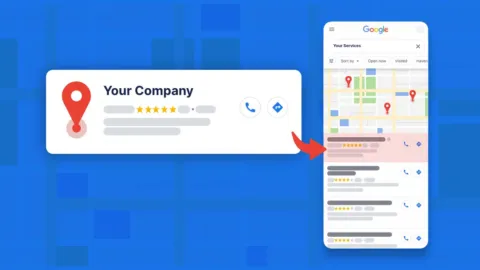
If you are a service area business hiding your address on Google, you are competing with one hand tied behind your back.
Google Maps rankings heavily favor businesses with:
- A verified physical location
- A clear GPS center point of reference
- Consistent proximity signals
You can still appear on Maps without showing an address, but in most markets you will be at a major disadvantage.
Here’s why:
Google cannot anchor your business to a reliable center point, so you lose proximity signals, which are one of the strongest ranking factors in local search.
Meanwhile, businesses with verified addresses tend to get prioritized for “near me” searches.
That means lower rankings, fewer calls, and fewer leads, even if you serve a wider area.
This is exactly why Jumper Local requires a verified physical address. We use your business address as the center point to activate our local network within a 100 square miles, which helps strengthen your local rankings. Without a verified address, we can’t activate your account or start building those results.
So here’s a step-by-step guide on how to add and verify your business address.
What Address Can You Use?
Google ALLOWS:
- Your home address (if you run your business from home)
- A friend’s warehouse/garage/office (with permission)
- A rented office or suite
- A coworking space (only if you have signage and staff present during business hours)
Important note on signage: Google expects businesses showing their address to have permanent signage with their business name. If you’re using a home address or alternative location, even simple signage (a small sign with your business name) can help if Google requests video verification.

Google DOES NOT ALLOW:
- PO Boxes
- Virtual offices or mailbox services
- Fake or temporary addresses
- Addresses you don’t have access to
Step 1: How to Add Your Address
- Go to Google Business Profile Manager
- Click Edit Profile → Location


- Click Edit next to “Business location”

- Enter your full address (street, suite/unit, city, state, ZIP)

- Turn ON “Show business address to customers” (critical for verification)

- Click Save


Changes to your profile usually take about 10 minutes to show up. In some cases, it can take up to 30 days.
Step 2: Verify Your Address
After saving your address, click Verify. Google will prompt you to verify using one of the methods below.
Note: Verification methods are automatically determined by Google and can’t be changed.
Postcard
- Google mails a code to your address (takes 5-14 days)
- Enter the code in your profile
Phone/Text/Email
- Google sends a code instantly
- Enter it to verify
Video (see Google’s guide to video verification)
- Record a video showing:
- Your business signage
- Inside your workspace
- Proof you operate from that location
Important Note: After you add your address and submit for verification, Google may temporarily hide your Business Profile from search results while they review the change.
This is normal.
During this review period, your listing may not appear in Google Maps or Search. Once verification is completed and approved, your profile becomes fully visible again.
There is nothing to worry about as long as the address follows Google’s guidelines.
Quick Recap: Do’s and Don’ts
DO:
- Use a real location you can prove you operate from
- Add signage
- Choose an address in an area where you do most business (within 2 hours driving)
- Wait for verification, can take up to 2 weeks
DON’T:
- Use a PO Box or virtual mailbox
- Use an address without permission
- Set a massive service area
- Rush verification
Fair Warning Before You Add Your Address
Adding an address can sometimes trigger a Google review. If Google thinks the address doesn’t meet their guidelines, they could suspend your profile temporarily.
This doesn’t happen often, but it can happen if:
- You use a PO Box or virtual office
- The address has no business signage
- Google suspects the location isn’t real
Follow the rules below to minimize the risk of suspension.
Have Questions or Need Help?
If you’re unsure about any step, schedule a call with our Jumper Local team. We’ll walk you through it before you make changes.